Thursday, February 28, 2008

How to Make a Copy of DVD Movie on Mac OS X (include Leopard)

DVD Copy for Mac:

http://www.dvd-ripper-copy.com/dvd-copy-mac.html


1. A professional DVD copy program for Mac OS users to copy D9 and D5 DVD movies (D9 to D9 and D5 to D5);
2. Copy DVD movies with the original quality 100% preserved and remove DVD protection methods such as CSS, RC and RCE;
3. Offers two output methods: copy DVD to either a new DVD disc or save DVD in a folder on Mac machine.

Suppose you have created your masterpiece and burnt it to DVD using iDVD or iMovie. You only want this one copy and need hard drive space, so you trash the entire DVD project. Soon after, you find that you now need extra copies of the DVD. Or you are in deep love with a DVD movie and want to make a copy of it for eternal collection. What follows is the process of making DVD copies from any DVDs, whether they are copyright protected or not.

As most of us only have one DVD drive in our Macs, this will be a two-step process. First we will need to copy the information from the DVD to our hard drive and eject the original DVD. When we copy the original DVD, we will make a .dmg of it on our hard drive. A disc image is an exact and perfect clone of the original. Then we will insert a blank DVD and burn the DVD disc image to the blank DVD. Note: before starting copying the DVD to your hard disc, make sure you have enough disc space. You can select the DVD in the Finder and then press: command (apple key) - I to get info about the disc.

Or if you have DVD file stored in your Mac hard disc, within one step you can burn it to a blank DVD disc by inserting it to your hard drive.

Wondershare DVD Copy for Mac serves as such a tool to help you copy your DVD to a new DVD disc with the original DVD quality 100% preserved on your Mac machine. As to protected DVD movies, this Mac DVD Copy program can remove protection mechanisms such as CSS, RC and RCE. What’s more, it has the function of copying DVD disc to your Mac computer, which actually is what ripping a DVD actually refers to (not converting it into another format). Here I don't intend to elaborate on it.

Monday, February 18, 2008

How to Put DVD, Video, YouTube Video, Google Video, Limewire Music to iPhone

Lots of people have iPhone, but many of us still have difficulties putting music, videos and other resources onto iPhone. I have been using my iPhone for quite a long time, and some tips below are what I have learned to put everything I can on my iPhone.

1. Put DVD movies on iPhone
2. Put video files on iPhone
3. Upload images to iPhone
4. Read PDF document on iPhone
5. Play games on iPhone
6. Watch YouTube videos on iPhone
7. Watch Google video on iPhone
8. Listen to limewire music on iPhone

1. Put DVD movies on iPhone

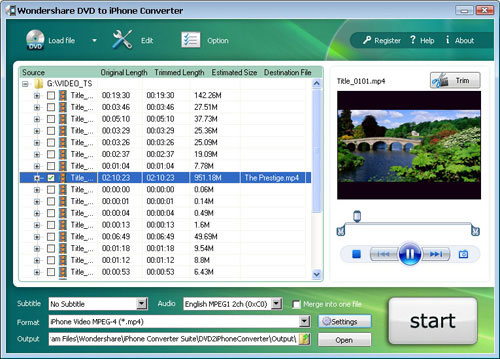
I have a huge collection of DVD movies. And I always put a few movies on my iPhone to kill time while travelling. As we know, DVD movies cannot be transferred to iPhone via iTunes, so I have to find a converter to do that. I have used a few converters like Handbrake and the one I am using now is Wondershare DVD to iPhone Converter. It is not free, but not expensive either. Not like handbrake, it can convert the encrypted DVDs, and it does a good job on the final quality and conversion speed. And if I don’t want to put a whole movie, I can just convert part of a movie onto my iPhone with this app. My OS is Windows, so I use the Windows version. If you are using Mac OS, I have noticed that they have a Mac DVD to iPhone converter that you can try, which I don’t know if is as good because I don’t have Mac OS.


2. Put video files on iPhone

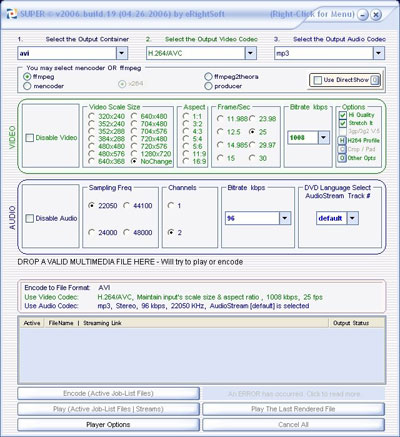
We must have many video files that taken by the DV, which usually are not in format accepted by iPhone. So we need to find a video converter to convert them into MP4 format. Here I recommend Super to you. It can convert video files to any video formats you want. You just need to import the video and set the parameters according to the iPhone video specification.

Tip: You need to right-click on it to do further operations.

iPhone video specifications:
H.264 video, up to 1.5 Mbps, 640 by 480 pixels, 30 frames per second, Low-Complexity version of the H.264 Baseline Profile with AAC-LC audio up to 160 Kbps, 48kHz, stereo audio in .m4v, .mp4, and .mov file formats; H.264 video, up to 768 Kbps, 320 by 240 pixels, 30 frames per second, Baseline Profile up to Level 1.3 with AAC-LC audio up to 160 Kbps, 48kHz, stereo audio in .m4v, .mp4, and .mov file formats; MPEG-4 video, up to 2.5 Mbps, 640 by 480 pixels, 30 frames per second, Simple Profile with AAC-LC audio up to 160 Kbps, 48kHz, stereo audio in .m4v, .mp4, and .mov file formats.


3. Upload images to iPhone

Assemble your iPhone wallpapers in a folder. And connect it with your computer. In iTunes (PC or Mac) do the following:Click the Photos tab and select "Sync photos from:” From the pop-up menu, do the following:Choose the iPhone wallpapers folder, or whichever folder you have saved the wallpapers too.You can then choose "All photos," or choose "Selected folders" or "Selected albums" and choose the folders or albums you want to sync.Then from your iPhone go to: Settings --> Wallpaper --> Photo Library and then choose which wallpaper you would like to set. That’s it!

4. Read PDF/MS office document on iPhone

Many people are confused about how to put PDF/MS office document on iPhone. In fact, it is so easy, as long as you get an email account. Email the files as attachment on your computer to your email account and retrieve it on iPhone, and you can read it anywhere.

5. Play games on iPhone

In order to play games on iPhone, you need to install an emulator firstly. The game emulator does require that you have already Jailbroken your device, but once you do, the installation is a breeze. First you install the emulator, then you add the games of your choice. Most of Nintendo games run excellent on iPhone, but not all; some games work badly on iPhone.

6. Watch YouTube video on iPhone

You need to download Youtube videos to your iPhone if you have a bad edge network. Youtube videos are in FLV formats, so I use a free online FLV converter to do the conversion:

Firstly, go to Youtube and open the page of the video you want to put on your iPhone. Copy the URL of this page.

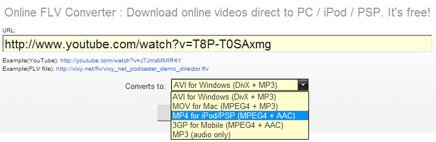
Secondly, go to http://vixy.net/ , paste the copied URL into the URL field of this web page, and select “MP4 for iPod/PSP” from the “Converts to” drop-down list. Then click “Start” below this list to start the conversion. See the highlighted areas below:


Finally, after the conversion, this website will provide a download link for you to download the converted MP4 file. When you see the link, you can just download the final file from the link, save the downloaded MP4 file on your computer and use iTunes to sync it on to your iPhone.

7. Watch Google video on iPhone

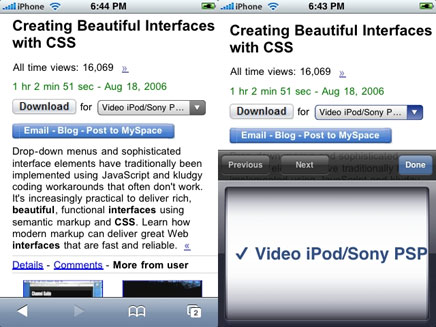
Because Google allows you to download most videos from their site in an iPhone compatible format, all you need to do is download that version of the video. To do this, pull up Google Video and search for a video as you normally would. When you actually get to the video, you're not going to see much. To play the video, click the little select list on the right and select "Video iPod/Sony PSP" and press "Done". Press download and the video will come up shortly. Simple, right?


8. Put music from Limewire to iPhone

Limewire is a download tool I assume lots of us use. I often use it to download free music and put them on my iPhone. If you don’t have Limewire, you can download it from its official website. Search and download songs from Limewire. You may get songs in all sorts of formats, but not all formats are supported by iPhone. Usually I select three formats: MP3, AAC and M4A formats that are supported by iPhone and can be directly transferred to iPhone using iTunes. For the detailed specs info, you can visit http://www.apple.com/iphone/specs.html. After you download the songs, then you can just transfer the songs to your iPhone from iTunes.

Tip: iTunes will convert wma songs to iPhone compatible format automatically.
The above is my experience with converting and transferring files from various sources to my iPhone, and I hope it can shed some light.

How to Convert YouTube Video to iPod nano on Mac OS

Ever thought of converting video files downloaded from the Internet or taken by our digital cameras to your iPod classic, iPod nano and iPod touch? Wondershare Video to iPod Converter for Mac provides you with the perfect solution. It can convert video to iPod classic, iPod nano and iPod touch with very high output quality. It has both a Power PC version and an Intel version, and you can just install the right program depending on your CPU. After the program is installed, follow the steps below to convert video to iPod:

Step 1: Add Video files

Click the Add button, and the program will let you browse your computer hard drive. Select the video files you want to convert and click OK.

Step 2: Output Settings

After adding video files, you can start to set output settings for each file:

1. Select an output format from the Format drop-down list. Just select an format according to the player which you want to put your videos on.
2. Click the Settings button to set encoding settings including video resolution, frame rate, bit rate and video encoder, audio encoding settings including sample rate, channel, bit rate and audio encoder.
3. Click the Browse button to specify an output folder to save the converted files.
Note 1: If you want to convert all the added files into one format with the same encoding parameters, you can just click the “Apply to All” button.
Note 2: You can check the “Merger into one file” option to convert all the added video files into a single file.


Step 3: Click the Start button to start the conversion. And all you need to do now is to wait for the conversion to be finished. The remaining time will be shown on conversion window for your reference.

Tip 1: Trim Movie


If you just want to convert a clip from a video file, you can select this file and click the Trim icon to capture a clip from it. In the Trim window, you can trim video length either by dragging the Start Time and End Time sliders or by setting the time parameters in each corresponding field.

Tip 2: Crop Video

If a video file has black video sides around its video, you can click the Crop button to open the Crop window and remove the black video sides. You can specify the video crop area by dragging the crop frame or setting the four crop parameters (Top, Bottom, Left and Right).

Tip 3: Movie Effect

If you want to change the original video effect, you can click the Effect icon to set the video brightness, contrast, saturation, and even audio volume. You can also choose to apply a special effect to your video from the available effects including Gray, Emboss and Negative.

Note: If a converted video has stripe, you can select a Deinterlace mode here and convert the original file again to remove the stripes.

Thursday, February 14, 2008

Rip DVD and Convert Video on Mac OS X (include Leopard)

This tutorial is composed of the following three parts:

1. How to rip DVD on Mac
2. How to convert video on Mac
3. Three useful tips

The tool you need:Wondershare DVD Ripper Suite for Mac

It is bundled by Wondershare DVD Ripper for Mac and Wondershare Video Converter for Mac.
It can help you rip DVD and convert video to all sorts of video formats that can be accepted by iPod touch, iPod classic, iPod nano, iPhone, Apple TV, PSP, PS3, YouTube (web), Creative Zen, iRiver PMP, Archos, various video mobile phones and many other digital video and audio players.

It provides powerful functions to edit your DVD and video files. It allows you to select DVD subtitle and audio track, choose any DVD chapters/titles to convert, merge more than one DVD chapter/title or video file into a single file, trim DVD/video length, crop video area, set video brightness, contrast, and saturation, and customize video/audio output settings.

To rip DVD and convert video on Mac OS, just follow the steps below.

Part 1: How to Rip DVD on Mac OS

After downloading the zip package of Wondershare DVD Ripper Suite for Mac, extract and install it, and then run Wondershare DVD Ripper for Mac and follow the steps below:

1. Import DVD Movies

Click the Load DVD button, select the folder of your DVD movie, and click OK. If the movie is on your disc drive, you can just select the drive and click OK. Or click the Load IFO button, open the folder of your DVD movie, and you will find two folders in it: AUDIO_TS and VIDEO_TS. Open the VIDEO_TS folder, select all the IFO files, and then click OK. After the movie is loaded, you can see all the chapters and titles in it, and then you can check the ones you want to convert. If you want to convert the whole movie, you can just keep all the titles or chapters checked.

2. Output Settings

After your DVD movie is loaded, you can start to set output settings:

1. Select an output format from the Format drop-down list. Just select an format according to the device you want to put.
2. Click the Settings button to set encoding settings including video resolution, frame rate, bit rate and video encoder, audio encoding settings including sample rate, channel, bit rate and audio encoder.
3. Name each title/chapter in the Output Filename field, and select the subtitle and audio track for the titles/chapters.

Note: You can check the “Merger into one file” option to join all the selected DVD titles/chapters into one file instead of creating a separated file for each title/chapter.

3. Click the Start button to start the conversion. And all you need to do now is to wait for the conversion to be finished. The remaining time will be shown on conversion window for your reference.

Part 2: How to Convert Video on Mac

And to convert video on Mac OS, just run Wondershare Video Converter for Mac and follow the steps below:

1. Add Video files

Click the Add button, and the program will let you browse your computer hard drive. Select the video files you want to convert and click OK.

2. Output Settings

After adding video files, you can start to set output settings for each file:

1. Select an output format from the Format drop-down list. Just select an format according to the player which you want to put your videos on.
2. Click the Settings button to set encoding settings including video resolution, frame rate, bit rate and video encoder, audio encoding settings including sample rate, channel, bit rate and audio encoder.
3. Click the Browse button to specify an output folder to save the converted files.

Note 1: If you want to convert all the added files into one format with the same encoding parameters, you can just click the “Apply to All” button.
Note 2: You can check the “Merger into one file” option to convert all the added video files into a single file.

3. Click the Start button to start the conversion. And all you need to do now is to wait for the conversion to be finished. The remaining time will be shown on conversion window for your reference.

Part 3: Three Useful Tips

1. Trim Movie

If you just want to convert a clip from your DVD/Video, you can click the Trim icon to capture a clip. In the Trim window, you can trim the length of the current title/chapter by either dragging the Start Time and End Time sliders or setting the time parameters in each corresponding field.

2. Crop Video

If your DVD movie/video has black sides, you can use this Crop function to remove them. Click the Crop icon to open the Crop window, and set the video crop area by dragging the crop frame or setting the four crop parameters (Top, Bottom, Left and Right).

3. Movie Effect

If you want to change the original video effect, you can click the Effect icon to set the video brightness, contrast, saturation, and even audio volume. You can also choose to apply a special effect to your DVD movie/video from the available effects including Gray, Emboss and Negative.