Tuesday, May 6, 2008

THE TOP 10 Mac freeware applications download

I just stumbled upon 10 best cool Mac freeware applications which I think are truly useful, like:

iAlarm allows users to control how they wake up in the morning by leveraging the power of OS X. iAlarm provides 7 basic alert types for users; play iTunes, speak the headline news, speak a custom message, speak your daily events and to do items from your iCal calendar, speak the local weather, and of course a standard beep.

MGTwitterEngine is a class which lets you integrate Twitter support into your Cocoa application, by making use of the Twitter API. The entire API is covered, and appropriate data is returned as simple Cocoa objects (NSArrays, NSDictionarys, NSStrings, NSDates and so on), for very easy integration with your code.

...

All of them are available for dowloading for free.

You can go to http://www.mac-dvd-ripper.com/article/free-mac-application.html to download more Mac applications for free.


Sunday, May 4, 2008

How to rip DVD's on Mac by using handbrake

HandBrake is a free DVD to MPEG-4 ripper/converter for Mac OS X 10.3.9 and later. Follow these steps to use HandBrake to convert your DVDs into MP4 format for storage and playback on your hard drive, or for playback on your video-supported iPod, iPhone and Apple TV.

1. Download and install HandBrake. Insert the DVD you wish to convert into your Mac's DVD drive. If your Mac's DVD Player application opens, quit the DVD Player application.

2. Run HandBrake. Select Detected volume. Click Open and wait as HandBrake detects the titles on your DVD. HandBrake will detect all the titles on the DVD. If you're ripping a movie, just select the longest title in the list. If you're ripping a TV show or something with multiple episodes on one disc, then select the episode you want.


3. Leave the default settings or choose the settings you prefer. For best quality, tick 2-pass encoding. This takes twice as long to encode, but it improves the video quality and doesn't make the file any larger. In Video–Quality, tick Average bitrate and enter 400. This can be as high as 768, but unless you squint you probably won't see much difference. Higher bitrate = higher quality video = larger file size. In Audio-Sample rate (Hz), select 44100. The Sample rate is entirely up to you. Higher sample rate = higher quality audio = larger file size. In Bitrate (kbps), you can keep the default of 128, or select a rate up to 160. Higher rate = higher audio quality = larger file size.

4. Click Rip. Encoding time depends on the speed of your Mac, the length of the movie, and whether you selected 2-pass encoding. Handbrake will display a progress bar. When the progress bar indicates Done, exit HandBrake. If you are going to watch the converted MP4 file on iPod/iPhone, run iTunes and find the .MP4 file that HandBrake created and drag it into your iTunes library, or select Add to Library… from the File menu and select the encoded movie.

Tips

1. If the converted MP4 file is still very large, for example more than 4.0 GB, you can turn to a compression program for help.

2. If you center on more powerful functions such as movie length trimming, video cropping, selecting DVD chapters/titles, joining/merging more than one DVD chapter/title, selecting audio track and subtitle, or want to rip DVD's for viewable on more mobile devices on Mac, you can try this Mac DVD ripper for your reference.

Tuesday, March 11, 2008

How to Make a Copy of DVD Movies on Mac OS X (include Leopard)

I have at hand a great number of DVD movie collections, and some of them are very old. I have to take good care of these old DVD discs. However, exactly last Sunday, when I wanted to watch a movie, one of my favorite DVD movies became eternally unusable as it was over-scratched.

While accepting the fact, it is necessary for me to find an active and effective way to solve the problem. If I had had an extra copy of the disc, I could still enjoy the movie. So I guess whether there exist such programs that backup DVD movies to blank DVD discs so that I can still take the copy out even if the original disc is broken or out of use. I made a Google search for them and my final target was Wondershare DVD Copy for Mac. I only wanted to backup those old DVD movies. What frustrated me was that the majority of them are copyright protected and the other applications I found were not able to copy the DVD movies. However, this program helped me out. It can remove the protection mechanisms for me and I can make another copy of my movies.

Besides, I also have several VIDEO_TS folders that were ripped from several DVD's before. I thought this was able to keep the DVD movies, however, I found this help me nothing but take up much hard drive space. In the end, I burnt these ripped files to DVD's again.

So you see, this Mac application really lent me a helping hand. Now, I don't need to worry about how to save the DVD discs' life even if they are terminally unusable. And I don't need to rip the DVD's to my computer in order to back up them. And for you, I am sure you can find it more useful and helpful. Well worth a shot, in one word.

Tuesday, March 4, 2008

Copy DVD Movies and Backup DVD Movies on Mac OS X (Leopard Compatible)

A few days ago, I wanted to make a copy of the DVD movie I have just bought on my Mac machine and I found a tool named Wondershare DVD Copy for Mac. I only intended to backup my movie, but I found it could also remove DVD protections, LOL, which is great because I could make more copies of my movies. So I got lots of the movies I collected copied onto new DVD discs and removed their protection mechanisms. I would say it is a very easy and fast tool. Worth a try!

Here is the home page of this Mac copy tool http://www.dvd-ripper-copy.com/dvd-copy-mac.html

It only takes a few easy steps to use it

Step 1: Select DVD Source


In the Select Source field, select Select source DVD folder. Then browse your computer hard disc and select your DVD movie (either in a folder or from your DVD ROM).


Step 2: Select DVD Copy Method

In the Select DVD Copy Method field to select a method to output the selected DVD movie:

If you want to output your DVD movie to a folder on your hard disc, you can select the Output DVD Folder option, and specify a directory to save the copied DVD movie.
If you want to directly burn your DVD movie to a new DVD disc, you can just select the DVD ROM where you have inserted a blank DVD disc.

Step 3: Program Settings (Optional)


Set Buffer Directory: Select a folder on a hard disc that has relatively big free space to store the temporary files.
Select Language: Select an interface language for the program.

Step 4: Start Copying DVD

Click the Start button to start copying your DVD movie and/or burning it to a new DVD disc. If you are copying a DVD disc from your DVD ROM to a new DVD disc, you will be asked to insert a blank DVD disc. If so, you can just take the original DVD disc out and insert a blank DVD disc.

Thursday, February 28, 2008

How to Make a Copy of DVD Movie on Mac OS X (include Leopard)

DVD Copy for Mac:

http://www.dvd-ripper-copy.com/dvd-copy-mac.html


1. A professional DVD copy program for Mac OS users to copy D9 and D5 DVD movies (D9 to D9 and D5 to D5);
2. Copy DVD movies with the original quality 100% preserved and remove DVD protection methods such as CSS, RC and RCE;
3. Offers two output methods: copy DVD to either a new DVD disc or save DVD in a folder on Mac machine.

Suppose you have created your masterpiece and burnt it to DVD using iDVD or iMovie. You only want this one copy and need hard drive space, so you trash the entire DVD project. Soon after, you find that you now need extra copies of the DVD. Or you are in deep love with a DVD movie and want to make a copy of it for eternal collection. What follows is the process of making DVD copies from any DVDs, whether they are copyright protected or not.

As most of us only have one DVD drive in our Macs, this will be a two-step process. First we will need to copy the information from the DVD to our hard drive and eject the original DVD. When we copy the original DVD, we will make a .dmg of it on our hard drive. A disc image is an exact and perfect clone of the original. Then we will insert a blank DVD and burn the DVD disc image to the blank DVD. Note: before starting copying the DVD to your hard disc, make sure you have enough disc space. You can select the DVD in the Finder and then press: command (apple key) - I to get info about the disc.

Or if you have DVD file stored in your Mac hard disc, within one step you can burn it to a blank DVD disc by inserting it to your hard drive.

Wondershare DVD Copy for Mac serves as such a tool to help you copy your DVD to a new DVD disc with the original DVD quality 100% preserved on your Mac machine. As to protected DVD movies, this Mac DVD Copy program can remove protection mechanisms such as CSS, RC and RCE. What’s more, it has the function of copying DVD disc to your Mac computer, which actually is what ripping a DVD actually refers to (not converting it into another format). Here I don't intend to elaborate on it.

Monday, February 18, 2008

How to Put DVD, Video, YouTube Video, Google Video, Limewire Music to iPhone

Lots of people have iPhone, but many of us still have difficulties putting music, videos and other resources onto iPhone. I have been using my iPhone for quite a long time, and some tips below are what I have learned to put everything I can on my iPhone.

1. Put DVD movies on iPhone
2. Put video files on iPhone
3. Upload images to iPhone
4. Read PDF document on iPhone
5. Play games on iPhone
6. Watch YouTube videos on iPhone
7. Watch Google video on iPhone
8. Listen to limewire music on iPhone

1. Put DVD movies on iPhone

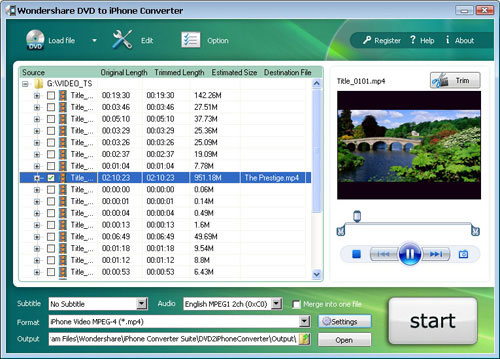
I have a huge collection of DVD movies. And I always put a few movies on my iPhone to kill time while travelling. As we know, DVD movies cannot be transferred to iPhone via iTunes, so I have to find a converter to do that. I have used a few converters like Handbrake and the one I am using now is Wondershare DVD to iPhone Converter. It is not free, but not expensive either. Not like handbrake, it can convert the encrypted DVDs, and it does a good job on the final quality and conversion speed. And if I don’t want to put a whole movie, I can just convert part of a movie onto my iPhone with this app. My OS is Windows, so I use the Windows version. If you are using Mac OS, I have noticed that they have a Mac DVD to iPhone converter that you can try, which I don’t know if is as good because I don’t have Mac OS.


2. Put video files on iPhone

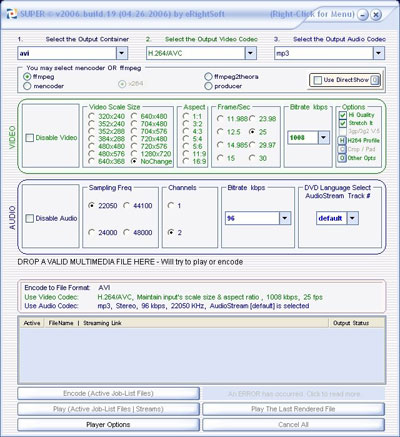
We must have many video files that taken by the DV, which usually are not in format accepted by iPhone. So we need to find a video converter to convert them into MP4 format. Here I recommend Super to you. It can convert video files to any video formats you want. You just need to import the video and set the parameters according to the iPhone video specification.

Tip: You need to right-click on it to do further operations.

iPhone video specifications:
H.264 video, up to 1.5 Mbps, 640 by 480 pixels, 30 frames per second, Low-Complexity version of the H.264 Baseline Profile with AAC-LC audio up to 160 Kbps, 48kHz, stereo audio in .m4v, .mp4, and .mov file formats; H.264 video, up to 768 Kbps, 320 by 240 pixels, 30 frames per second, Baseline Profile up to Level 1.3 with AAC-LC audio up to 160 Kbps, 48kHz, stereo audio in .m4v, .mp4, and .mov file formats; MPEG-4 video, up to 2.5 Mbps, 640 by 480 pixels, 30 frames per second, Simple Profile with AAC-LC audio up to 160 Kbps, 48kHz, stereo audio in .m4v, .mp4, and .mov file formats.


3. Upload images to iPhone

Assemble your iPhone wallpapers in a folder. And connect it with your computer. In iTunes (PC or Mac) do the following:Click the Photos tab and select "Sync photos from:” From the pop-up menu, do the following:Choose the iPhone wallpapers folder, or whichever folder you have saved the wallpapers too.You can then choose "All photos," or choose "Selected folders" or "Selected albums" and choose the folders or albums you want to sync.Then from your iPhone go to: Settings --> Wallpaper --> Photo Library and then choose which wallpaper you would like to set. That’s it!

4. Read PDF/MS office document on iPhone

Many people are confused about how to put PDF/MS office document on iPhone. In fact, it is so easy, as long as you get an email account. Email the files as attachment on your computer to your email account and retrieve it on iPhone, and you can read it anywhere.

5. Play games on iPhone

In order to play games on iPhone, you need to install an emulator firstly. The game emulator does require that you have already Jailbroken your device, but once you do, the installation is a breeze. First you install the emulator, then you add the games of your choice. Most of Nintendo games run excellent on iPhone, but not all; some games work badly on iPhone.

6. Watch YouTube video on iPhone

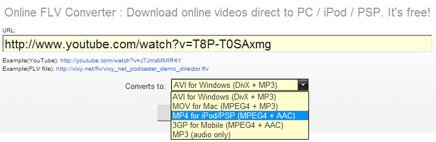
You need to download Youtube videos to your iPhone if you have a bad edge network. Youtube videos are in FLV formats, so I use a free online FLV converter to do the conversion:

Firstly, go to Youtube and open the page of the video you want to put on your iPhone. Copy the URL of this page.

Secondly, go to http://vixy.net/ , paste the copied URL into the URL field of this web page, and select “MP4 for iPod/PSP” from the “Converts to” drop-down list. Then click “Start” below this list to start the conversion. See the highlighted areas below:


Finally, after the conversion, this website will provide a download link for you to download the converted MP4 file. When you see the link, you can just download the final file from the link, save the downloaded MP4 file on your computer and use iTunes to sync it on to your iPhone.

7. Watch Google video on iPhone

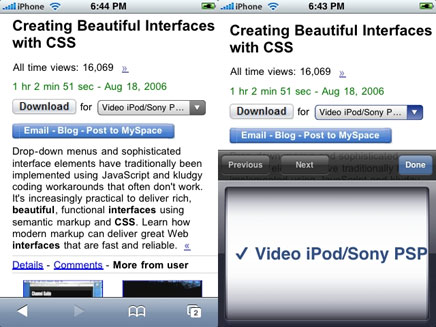
Because Google allows you to download most videos from their site in an iPhone compatible format, all you need to do is download that version of the video. To do this, pull up Google Video and search for a video as you normally would. When you actually get to the video, you're not going to see much. To play the video, click the little select list on the right and select "Video iPod/Sony PSP" and press "Done". Press download and the video will come up shortly. Simple, right?


8. Put music from Limewire to iPhone

Limewire is a download tool I assume lots of us use. I often use it to download free music and put them on my iPhone. If you don’t have Limewire, you can download it from its official website. Search and download songs from Limewire. You may get songs in all sorts of formats, but not all formats are supported by iPhone. Usually I select three formats: MP3, AAC and M4A formats that are supported by iPhone and can be directly transferred to iPhone using iTunes. For the detailed specs info, you can visit http://www.apple.com/iphone/specs.html. After you download the songs, then you can just transfer the songs to your iPhone from iTunes.

Tip: iTunes will convert wma songs to iPhone compatible format automatically.
The above is my experience with converting and transferring files from various sources to my iPhone, and I hope it can shed some light.

How to Convert YouTube Video to iPod nano on Mac OS

Ever thought of converting video files downloaded from the Internet or taken by our digital cameras to your iPod classic, iPod nano and iPod touch? Wondershare Video to iPod Converter for Mac provides you with the perfect solution. It can convert video to iPod classic, iPod nano and iPod touch with very high output quality. It has both a Power PC version and an Intel version, and you can just install the right program depending on your CPU. After the program is installed, follow the steps below to convert video to iPod:

Step 1: Add Video files

Click the Add button, and the program will let you browse your computer hard drive. Select the video files you want to convert and click OK.

Step 2: Output Settings

After adding video files, you can start to set output settings for each file:

1. Select an output format from the Format drop-down list. Just select an format according to the player which you want to put your videos on.
2. Click the Settings button to set encoding settings including video resolution, frame rate, bit rate and video encoder, audio encoding settings including sample rate, channel, bit rate and audio encoder.
3. Click the Browse button to specify an output folder to save the converted files.
Note 1: If you want to convert all the added files into one format with the same encoding parameters, you can just click the “Apply to All” button.
Note 2: You can check the “Merger into one file” option to convert all the added video files into a single file.


Step 3: Click the Start button to start the conversion. And all you need to do now is to wait for the conversion to be finished. The remaining time will be shown on conversion window for your reference.

Tip 1: Trim Movie


If you just want to convert a clip from a video file, you can select this file and click the Trim icon to capture a clip from it. In the Trim window, you can trim video length either by dragging the Start Time and End Time sliders or by setting the time parameters in each corresponding field.

Tip 2: Crop Video

If a video file has black video sides around its video, you can click the Crop button to open the Crop window and remove the black video sides. You can specify the video crop area by dragging the crop frame or setting the four crop parameters (Top, Bottom, Left and Right).

Tip 3: Movie Effect

If you want to change the original video effect, you can click the Effect icon to set the video brightness, contrast, saturation, and even audio volume. You can also choose to apply a special effect to your video from the available effects including Gray, Emboss and Negative.

Note: If a converted video has stripe, you can select a Deinterlace mode here and convert the original file again to remove the stripes.

Thursday, February 14, 2008

Rip DVD and Convert Video on Mac OS X (include Leopard)

This tutorial is composed of the following three parts:

1. How to rip DVD on Mac
2. How to convert video on Mac
3. Three useful tips

The tool you need:Wondershare DVD Ripper Suite for Mac

It is bundled by Wondershare DVD Ripper for Mac and Wondershare Video Converter for Mac.
It can help you rip DVD and convert video to all sorts of video formats that can be accepted by iPod touch, iPod classic, iPod nano, iPhone, Apple TV, PSP, PS3, YouTube (web), Creative Zen, iRiver PMP, Archos, various video mobile phones and many other digital video and audio players.

It provides powerful functions to edit your DVD and video files. It allows you to select DVD subtitle and audio track, choose any DVD chapters/titles to convert, merge more than one DVD chapter/title or video file into a single file, trim DVD/video length, crop video area, set video brightness, contrast, and saturation, and customize video/audio output settings.

To rip DVD and convert video on Mac OS, just follow the steps below.

Part 1: How to Rip DVD on Mac OS

After downloading the zip package of Wondershare DVD Ripper Suite for Mac, extract and install it, and then run Wondershare DVD Ripper for Mac and follow the steps below:

1. Import DVD Movies

Click the Load DVD button, select the folder of your DVD movie, and click OK. If the movie is on your disc drive, you can just select the drive and click OK. Or click the Load IFO button, open the folder of your DVD movie, and you will find two folders in it: AUDIO_TS and VIDEO_TS. Open the VIDEO_TS folder, select all the IFO files, and then click OK. After the movie is loaded, you can see all the chapters and titles in it, and then you can check the ones you want to convert. If you want to convert the whole movie, you can just keep all the titles or chapters checked.

2. Output Settings

After your DVD movie is loaded, you can start to set output settings:

1. Select an output format from the Format drop-down list. Just select an format according to the device you want to put.
2. Click the Settings button to set encoding settings including video resolution, frame rate, bit rate and video encoder, audio encoding settings including sample rate, channel, bit rate and audio encoder.
3. Name each title/chapter in the Output Filename field, and select the subtitle and audio track for the titles/chapters.

Note: You can check the “Merger into one file” option to join all the selected DVD titles/chapters into one file instead of creating a separated file for each title/chapter.

3. Click the Start button to start the conversion. And all you need to do now is to wait for the conversion to be finished. The remaining time will be shown on conversion window for your reference.

Part 2: How to Convert Video on Mac

And to convert video on Mac OS, just run Wondershare Video Converter for Mac and follow the steps below:

1. Add Video files

Click the Add button, and the program will let you browse your computer hard drive. Select the video files you want to convert and click OK.

2. Output Settings

After adding video files, you can start to set output settings for each file:

1. Select an output format from the Format drop-down list. Just select an format according to the player which you want to put your videos on.
2. Click the Settings button to set encoding settings including video resolution, frame rate, bit rate and video encoder, audio encoding settings including sample rate, channel, bit rate and audio encoder.
3. Click the Browse button to specify an output folder to save the converted files.

Note 1: If you want to convert all the added files into one format with the same encoding parameters, you can just click the “Apply to All” button.
Note 2: You can check the “Merger into one file” option to convert all the added video files into a single file.

3. Click the Start button to start the conversion. And all you need to do now is to wait for the conversion to be finished. The remaining time will be shown on conversion window for your reference.

Part 3: Three Useful Tips

1. Trim Movie

If you just want to convert a clip from your DVD/Video, you can click the Trim icon to capture a clip. In the Trim window, you can trim the length of the current title/chapter by either dragging the Start Time and End Time sliders or setting the time parameters in each corresponding field.

2. Crop Video

If your DVD movie/video has black sides, you can use this Crop function to remove them. Click the Crop icon to open the Crop window, and set the video crop area by dragging the crop frame or setting the four crop parameters (Top, Bottom, Left and Right).

3. Movie Effect

If you want to change the original video effect, you can click the Effect icon to set the video brightness, contrast, saturation, and even audio volume. You can also choose to apply a special effect to your DVD movie/video from the available effects including Gray, Emboss and Negative.

Monday, January 21, 2008

How to Rip DVD on Mac OS X (include Leopard)

Want to rip your DVD movies for iPod touch, iPod classic, iPod nano, iPhone, Apple TV, PSP, PS3, YouTube (web), Creative Zen, iRiver PMP, Archos, all kinds of video cell phones and digital video and audio players on Mac OS? Wondershare DVD Ripper for Mac offers the best solution for Mac OS users who want to rip their DVD to almost all video formats such as MP4, AVI, M4V, MOV, 3GP, MPG, FLV and audio formats including MP3, M4A, AAC, WAV, OGG, APE for most popular mobile devices, complete with options to select DVD audio track and subtitle, crop DVD video, trim DVD length, set video effects and so on. To rip a DVD movie, you can download Wondershare DVD Ripper for Mac and follow the steps below:

Step1: Import DVD Movies


Click the Load DVD button, select the folder of your DVD movie, and click OK. If the movie is on your disc drive, you can just select the drive and click OK. Or click the Load IFO button, open the folder of your DVD movie, and you will find two folders in it: AUDIO_TS and VIDEO_TS. Open the VIDEO_TS folder, select all the IFO files, and then click OK. After the movie is loaded, you can see all the chapters and titles in it, and then you can check the ones you want to convert. If you want to convert the whole movie, you can just keep all the titles or chapters checked.

Step 2: Output Settings

After your DVD movie is loaded, you can start to set output settings:

1. Select an output format from the Format drop-down list. Just select an format according to the device you want to put.
2. Click the Settings button to set encoding settings including video resolution, frame rate, bit rate and video encoder, audio encoding settings including sample rate, channel, bit rate and audio encoder.
3. Name each title/chapter in the Output Filename field, and select the subtitle and audio track for the titles/chapters.

Note: You can check the “Merger into one file” option to join all the selected DVD titles/chapters into one file instead of creating a separated file for each title/chapter.

Tip 1: Trim Movie

If you just want to convert a clip from your DVD movie, you can click the Trim icon to capture a clip. In the Trim window, you can trim the length of the current title/chapter by either dragging the Start Time and End Time sliders or setting the time parameters in each corresponding field.

Tip 2: Crop Video

If your DVD video has black sides, you can use this Crop function to remove them. Click the Crop icon to open the Crop window, and set the video crop area by dragging the crop frame or setting the four crop parameters (Top, Bottom, Left and Right).

Tip 3: Movie Effect

If you want to change the original video effect, you can click the Effect icon to set the video brightness, contrast, saturation, and even audio volume. You can also choose to apply a special effect to your movie video from the available effects including Gray, Emboss and Negative.